

DIO-TOOLS-David1327 FAQ
Here you will find answers to frequently asked questions about DIO-TOOLS-David1327.
Questions Summary
Q1: How to install it? 🔗
Your browser needs Tampermonkey to run the script.
If you already have it installed, you should see the
 icon in the top-right corner of your browser window.
If it is not installed yet, follow step 1. If it is already installed, skip straight to step 2.
1) Installing Tampermonkey
Click your browser’s icon below:


Click Add to Chrome / Firefox (or Get).
If you don’t see the Tampermonkey icon
in the top-right corner, restart your browser.
2) Installing DIO-TOOLS-David1327
Click this link: DIO-TOOLS-David1327 to install the script in Tampermonkey, then click Install.
Then open or refresh the Grepolis website.
To make sure the script is active, you should see the number “1” on a red background next to the Tampermonkey icon.
On the right sidebar of the main game screen, you should also see the jellyfish icon:

Q2: Enable "Developer mode" 🔗
You need to enable Developer mode in your browser’s extensions. Follow our tutorial:
Here is what it looks like in pictures:
-
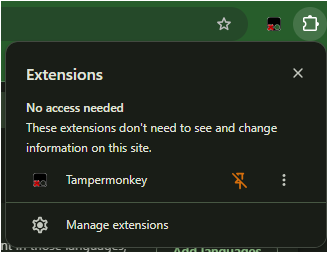
Open your browser’s extension settings by clicking the extensions icon, then select Manage extensions.
-
Turn on Developer mode, then click Update. Feel free to restart your browser.

Q3: Permission to run userscripts 🔗
For users of the Tampermonkey extension (version 5.3+) on a Chromium/Chrome-based browser, it is necessary to enable either the “Allow User Scripts” toggle (in the extension settings) or Developer mode.
Why is permission to run userscripts needed?
An additional permission is required due to the two-step authorization process for userscripts: the userScripts permission and enabling either the toggle or Developer mode. The userScripts permission alone does not trigger a warning during installation, allowing users to stay in control of script execution.
-
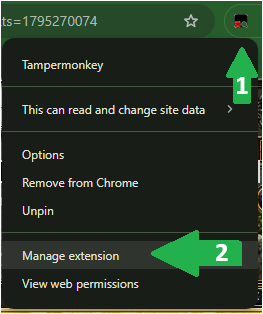
Right-click the Tampermonkey icon (1), then select Manage extension (2).
-
Find and turn on the “Allow User Scripts” toggle.

Q4: How to enable/disable 🔗
To disable the script:
Click the
Tampermonkey icon, find the script in the list, and click the green circle so it turns red (the script is now disabled).
After refreshing Grepolis, the Tampermonkey counter remains visible, but the jellyfish icon no longer appears.
To enable the script:
Click the
Tampermonkey icon, find the script in the list, and click the red circle so it turns green (the script is now enabled).
After refreshing Grepolis, both the Tampermonkey counter and the jellyfish icon are back.
