We are constantly working on a new version of the manual
How does it work
Grepolis Report Converter Revolution Tools - Comment ça marche
Le convertisseur traduit les rapports du jeu en BB-code ce qui permet de l'inclure dans Le corps d'un message ou forum d'alliance ainsi qu'un forum externe.
Lorsque la conversion est possible, dans la partie basse de la fenêtre, Convertir Le bouton devient visible. Après avoir cliqué sur le bouton mentionné, une fenêtre apparaît, qui proposerales possibilitées de conversion
Parce que le code generé diffère selon qu'on l'utilise dans un forum alliance ou externe; deux boutons sont disponiblesEx : pour l'ajout à un message ou forum interne, et un autre pour les forums externes.Le bon bouton doit être choisi. Le réglage par défaut est : Forum alliance ou dans un message."
Comme maintenant il est possible de convertir les remparts (nombre de troupes tués et perdues), et quelques autres rapports
Selon le type du rapport converti, il est possible de choisir des options supplémentaires, par exemple:
-
Pour les rapports qui concernent les attaques / défense:
- Si l'attaquant 's, les troupes doivent être visible
- Si le défenseur 's les troupes doivent être visible
- Si les pertes de marchandises doivent être visible
-
Pour les rapports qui concerne l'espionnage
- Si les bâtiments doivent être visible
- Si les unités doivent être visible
- Si les marchandises doivent être visible
- Si le nombre de pièces d'argent utilisé doit être visible
Après avoir choisi les options appropriées, appuyez sur le Géneré bouton, et dans la partie inférieure sur l'aperçulorsque le code final est affiché, pour copier le code généré, il suffit de cliquer sur code généréen appuyant sur BBCode le bouton et l'afficher en entier, Effectuer un cliquegauche avec la souris. Ensuite, il est possible de copier le presse papier (combinaison des touches [Ctrl]+[C])et coller le tout (combinaison des touches [Ctrl]+[V]) à l'endroit approprié, dans le corp d'un message ou un post forum.
With the release of version 3.1.0 of GRCRTools, improved Army Builder Helper became available. Goal of this module is to provide fast, accurate and efficient transfer of resources for (re-)building troops.
Settings
We created this FAQ to help you understand ABH and how best to use it.
To be able to quickly build troops, we need forst to "tell" our script what do we need to build and where. To do that, we must access settings, by clicking ABH icon

When clicked, it'll open settings window

On the left side is an overwiev of all land and naval units. Those semi-transparent cannot be selected, because they have not been researched and are not available in barracks / harbor.

Clicking a unit will update info on the right side of the window

- amount of free population is checked
- maximum possible units, that can be build using up all of free population
- check for a presence of proper research (conscription for land units / mathematics for naval ones) - this is to know whether selected unit can be build with reduced cost. Reduced cost = more units in a queue.
- knowing the cost of a selected unit (checked automatically), warehouse size (checked automatically) and queue size (max 7 orders) script displays what is the maximum possible amount of units that can be queued along with the amount of orders and size of each one needed to realize the recruitment (3 orders: 2x36 swords and 1x35)
- set here how many units you need to build
- default resource package size - for how many units should resources be sent in a single shipment
Trade window
When you open trade window for a city you have remember your build settings, you'll be presented with following view.

The icon represents type of unit you chose to be built in that city. Number in the right lower corner tells maximum amount of units for which resources can be send. This may (and very oftel WILL) differ from the remembered "max package size", because script automatically checks and comapres: remembered package size, available resources in the sending city, remaining trade capacity. It then calculates what is the REAL maximum quantity and updates the icon with proper values. So let's assume scenario, where remembered "package size" is set to 12 - like on previous screen - and the resources in sending city are enough for 25 units. If trade capacity will allow for 6 units, then script will indocate that maximum units is 6.
Under the icon are "+" and "-" controls for quick change of quantity.
At the very bottom is a quick glance at shipments status, viewing how much resources needs to be sent yet.
Clicking the icon will fill resource fields with quantities for the chosen amount of units.

sending resources will update status info on the bottom of the window

Trade window - premium
Upon opening the premium trade window

we need to drag our target city, for which we have just remembered settings, to its proper location

notice, that when city for which trade settings have been saved, is placed as receiving town - an icon representing chosen unit will be displayed next to resource selection boxes. Now we need to drop sending town to the left side.

please notice, that icon representing chosen unit has just been updated with a number indicating maximum amount of units for which resources can be send. This may (and very oftel WILL) differ from the remembered "max package size", because script automatically checks and comapres: remembered package size, available resources in the sending city, remaining trade capacity. It then calculates what is the REAL maximum quantity and updates the icon with proper values. So let's assume scenario, where remembered "package size" is set to 12 - like on previous screen - and the resources in sending city are enough for 25 units. If trade capacity will allow for 6 units, then script will indocate that maximum units is 6.
Under the icon are "+" and "-" controls for quick change of quantity.
At the very bottom of premium window a quick glance at shipments status, viewing how much resources needs to be sent yet.
Next, we click the icon. Because package was set at 12 swords, clicking the icon will update resource fields with amount required for 12 swords

Clicking green tick icon, will send the resources, and script will subtract the amount resources sent from the total amount needed

Quick info
have you ever been wondering "how handy it'd be if I could send resources / troops between my cities based on the distance" ?
Wonder no more, as we've done just that!
When building up your city / (re)building army, it is of a great importance to know your nearest cities, as sending resources from the nearest ones shortens travel time, which - in return - allows you to trade them more efficiently. And sending resources fast is the key to make you grow faster.
Top players have special naming convention for their towns, to achieve just that - being able to tell, just by looking at the name, what is the nearest city to the currently selected.Unfortunately, the more cities, the more difficult it becomes to keep track of the distances between each and every one...
So what is TSL (Town Sorted List) and how to use it?
TSL is a simple GRCRT addon, that will provide you with a list of all your cities, sorted by the distance between them and the city you are currently in.
But how good is a list if it's just static and towns are not clickable?
We've thought about that, too:
- hover your mouse over the name and a "jump to" icon will appear.
- Click the name and.... you'll be taken there.
Closing and re-opening it (the list) will render new results for you.
Radar
This tool, also known as city search, will help you find any kind of city in the game, in desired radius, for specified troops range (including most speed modifiers), meeting minimum points value.
How to use it#
Depending on the need, Radar can be accessed in 4 different ways, each offering slightly different search options. Below is the explanation of those options.
General search#
This is the most known, most widely used search of all 4. It allows finding cities that do not meet any specific, narrow, criteria. Accessing it is very straightforward.
Base of search is the city you're currently in.
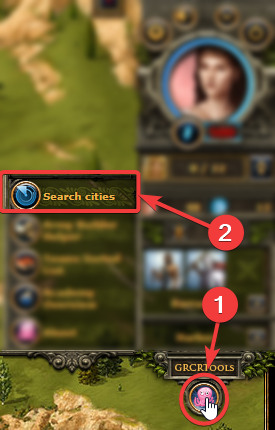
You'll then be presented with the main search window, with various
adjustable search parameters 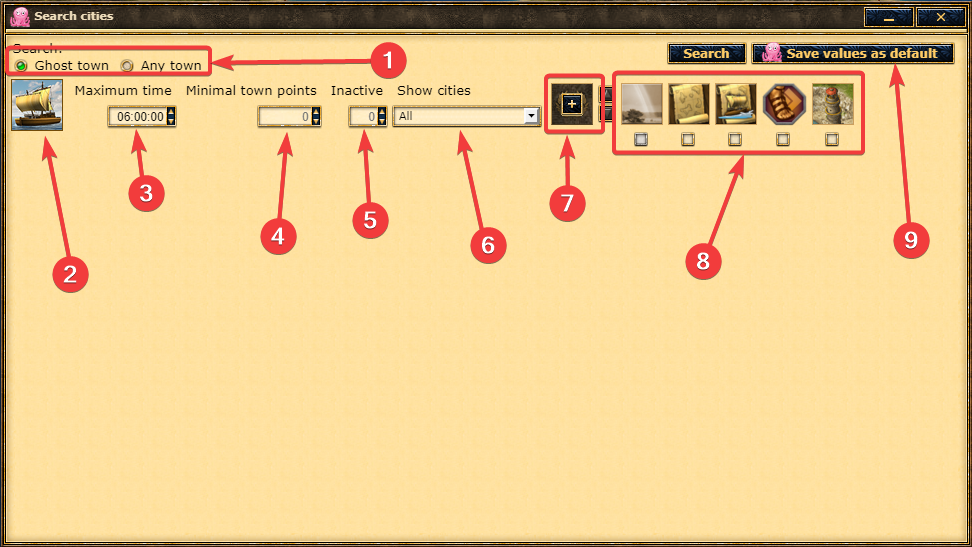
- Choose between ghost town and "normal" town
- Select desired unit type as basis for calculation
- Set the maximum time that unit should travel. Allowed timeframe is between ½ hour up to 24 hours. Default is 6 hours. You cand adjust the time in 30 minute increments, or type it in manually for exact time.
- What are the minumum points a city should have.
- How many days inactive.
-
What "type" of city should be searched. Options are
- All
- Your cities
- Your alliance
- Your alliance + Pacts
- Pacts
- Enemies
- Speed modifiers: Heroes (currently only Atalanta is available)
- Speed modifiers: researches
- If you use the same search parameters frequently, you can save them to be always loaded as default
Specific player's cities in radius#
Similarily to the generic search, you can also search only for cities belonging to a specific player that are in specified radius from your current city.
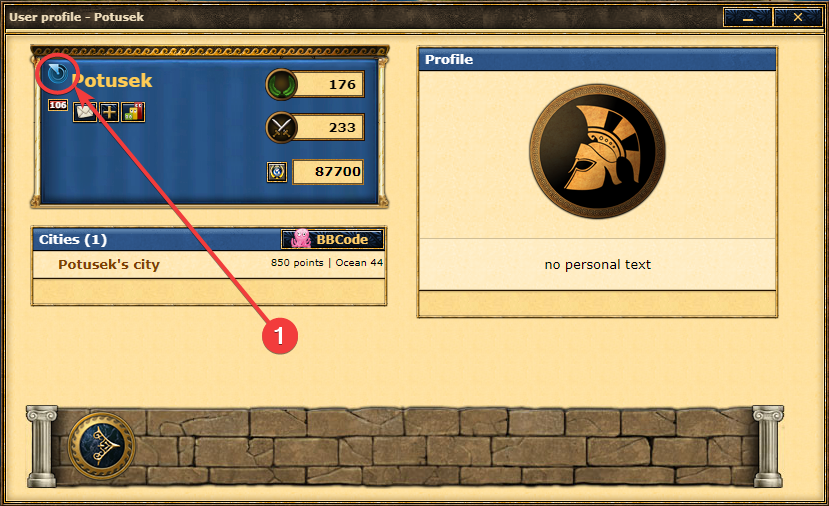
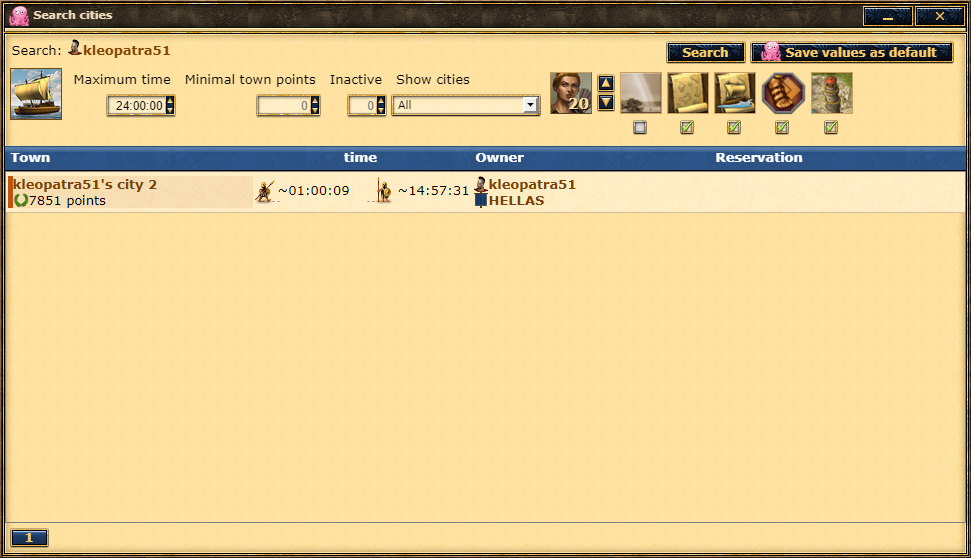
Search options are identical to those of General search, with the exception
that show cities (type of searched city) is locked to
all because we want to find all cities of selected
player. 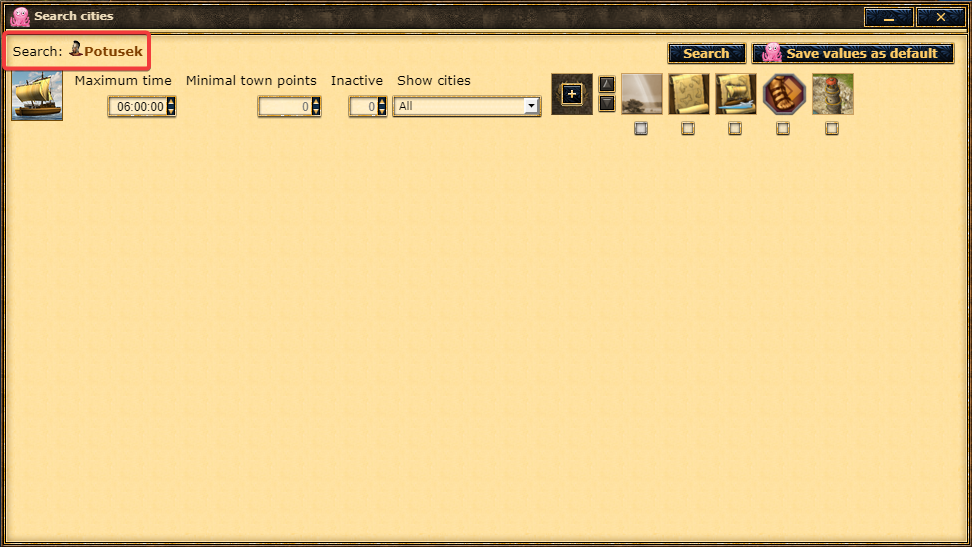
Specific alliance's cities in radius#
Just like with searching all players' cities, you can also search all cities of a selected alliance that are in specified radius from your current city.
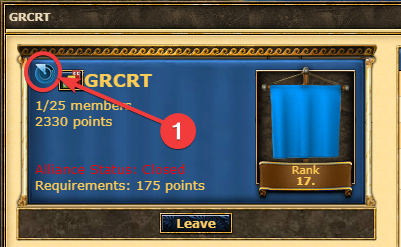
Search options are identical to those of General search, with the exception
that show cities (type of searched city) is locked to
all because we want to find all cities of selected
alliance. 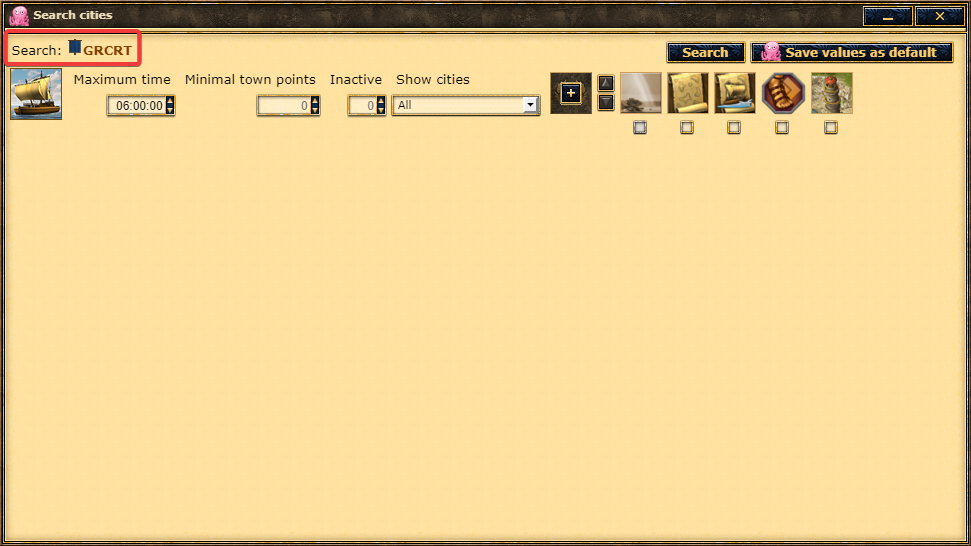
Cities in radius of specific city#
The last search option works a bit differently: you choose other town as a base for distance / time calculations.
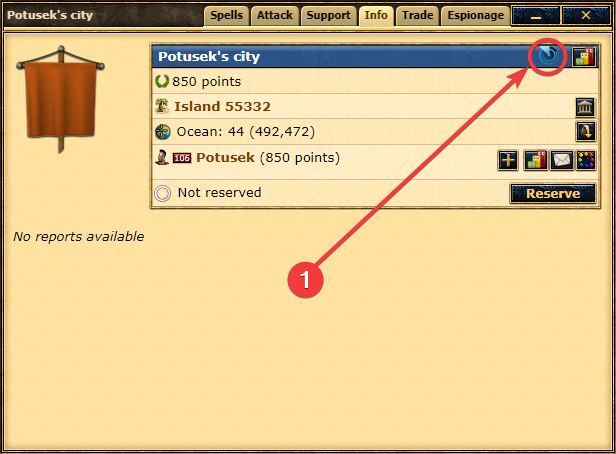
Search options are identical to those of General search. 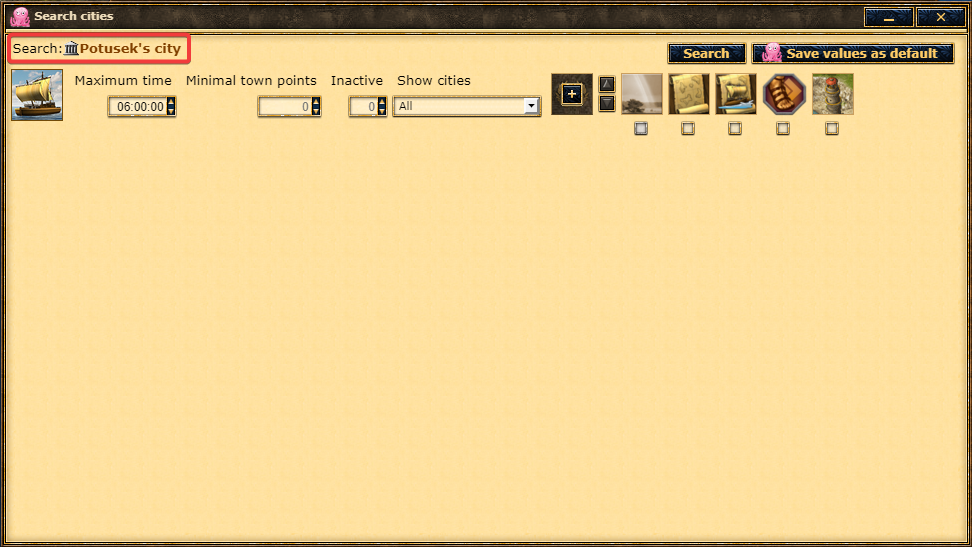
Most common usage scenarios#
Below, we present you with a couple of examples on how you can put the Radar to use.
Closest cities with bireme range.#
Let's assume you're playing on a world with conquest system.
You want to park your CS in emeny city and you need to know how many cities could potentialy get there in time to block your CS.
Let's assume this is your target. 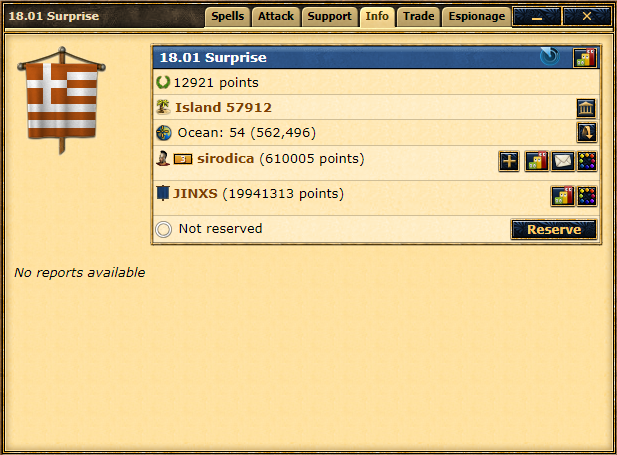
As seen on attack screen, your CS travel time is
01:44:03 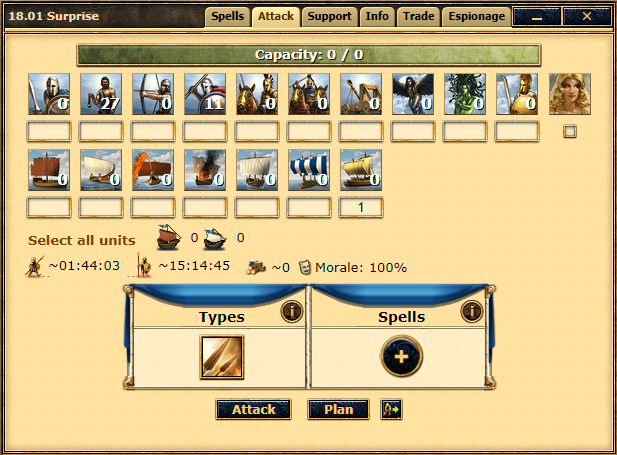
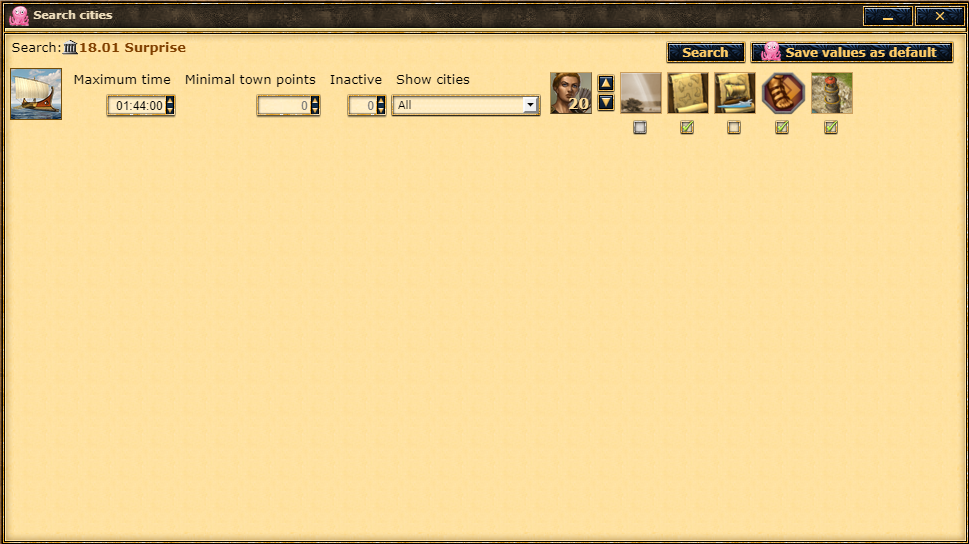
Open the Radar, as explained in Cities in radius of
specific city and adjust it's search parameters like on
screenshot below and hit Search
To be on a safe side, it's recommended to select all speed modifiers
(hope for the best, but prepare for the worst). To narrow down the
search, you can adjust the Show cities parameter.
Finding attacker's closest CS cities#
In this example we'll be focusing on a revolt system.
Let's assume this is the attacker. 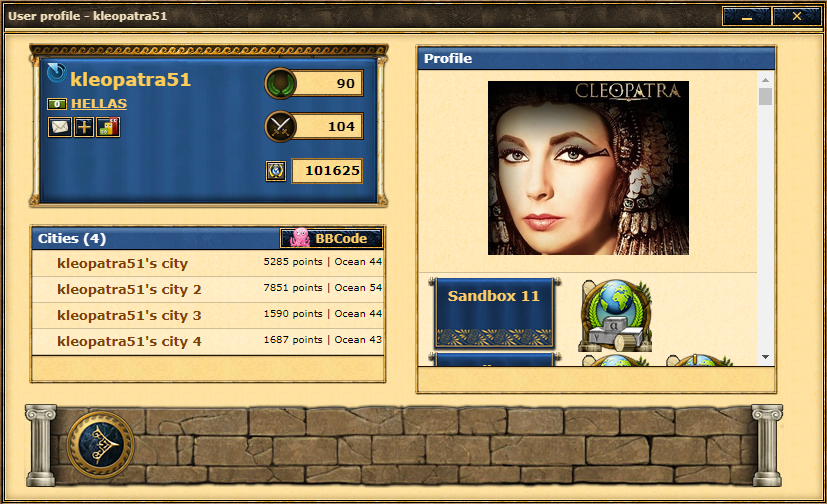
A revolt has just been stirred up in your city and you need to know which (and how many) of the attackers' cities are capable of launching CS to reach your city by the time revolt starts.
Open the Radar, as explained in Specific player's
cities in radius and set CS maximum time to 12 hours and all
modifiers to the max (like in previous example: hope for the best,
but prepare for the worst - by selecting all modifiers you include
every possibility). 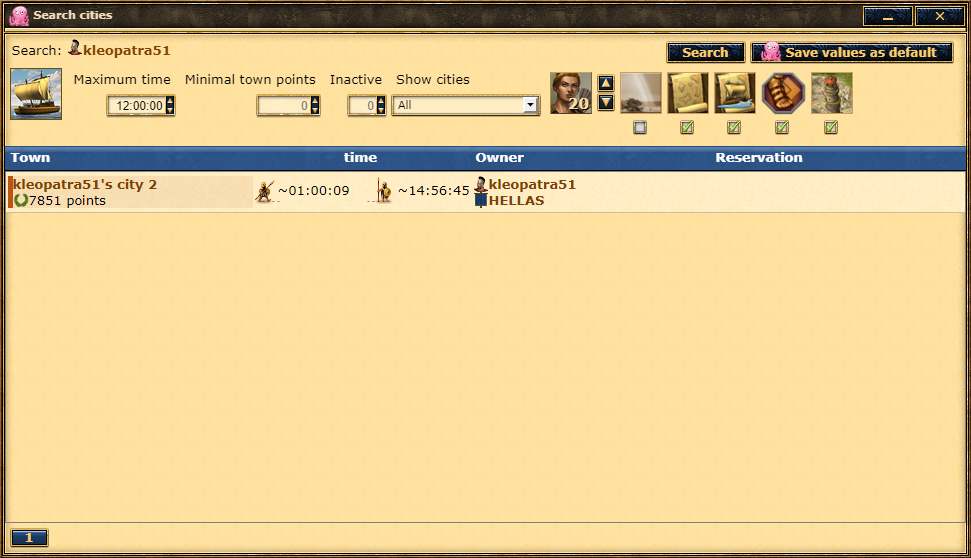
And to check for any other attackers' cities that can still launch CS
by the time revolt ends.